
Home, in two calm lines
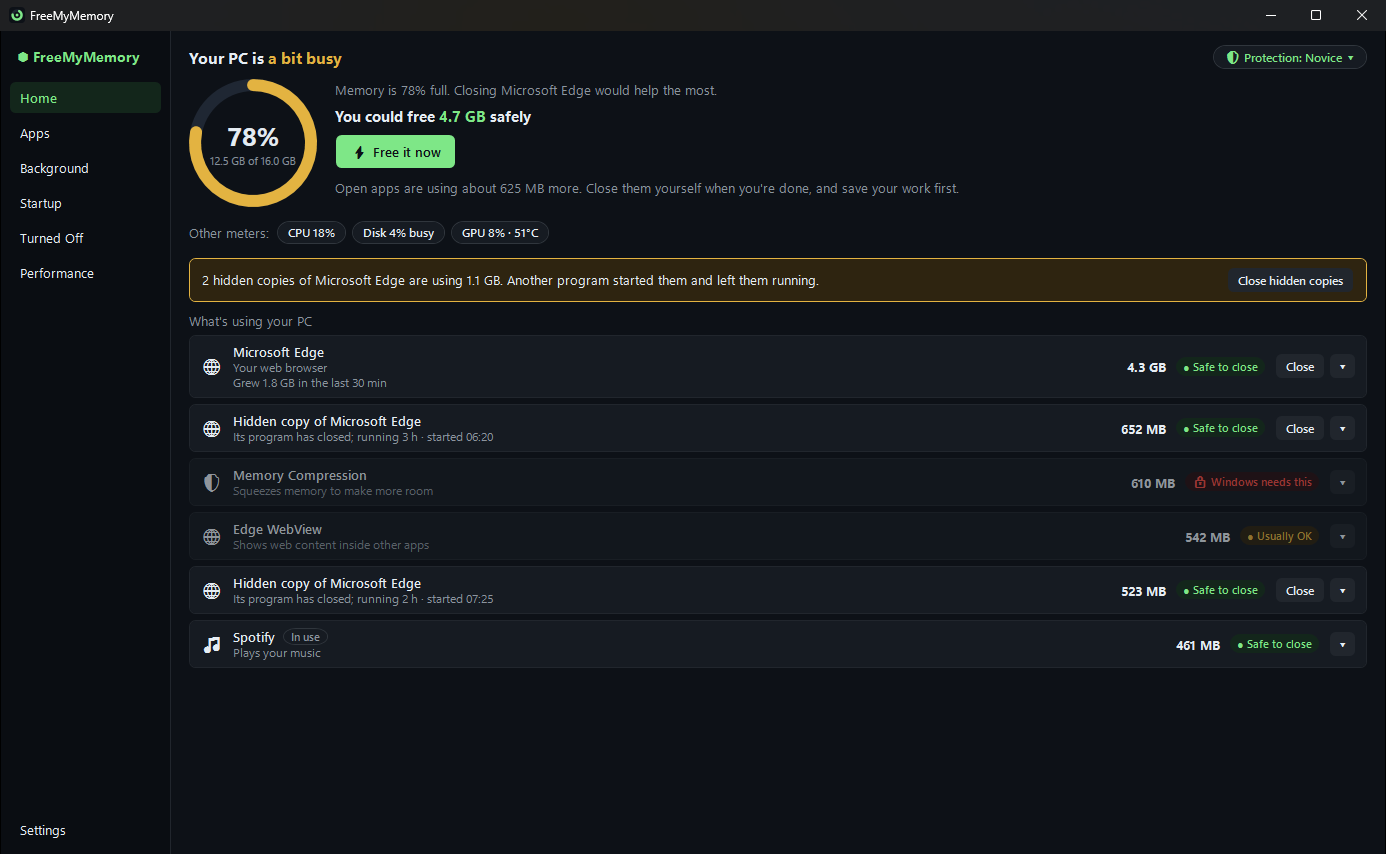
Home says how your PC is doing (Your PC is relaxed), how much you could free safely, and what your other open apps are using.
Free for Windows 10 and 11
FreeMyMemory is a calmer, safer Task Manager. It says in plain words what each app and background program is, whether it's safe to stop, and how much memory you'd get back.
What it does
Home says how your PC is doing (Your PC is relaxed), how much you could free safely, and what your other open apps are using.
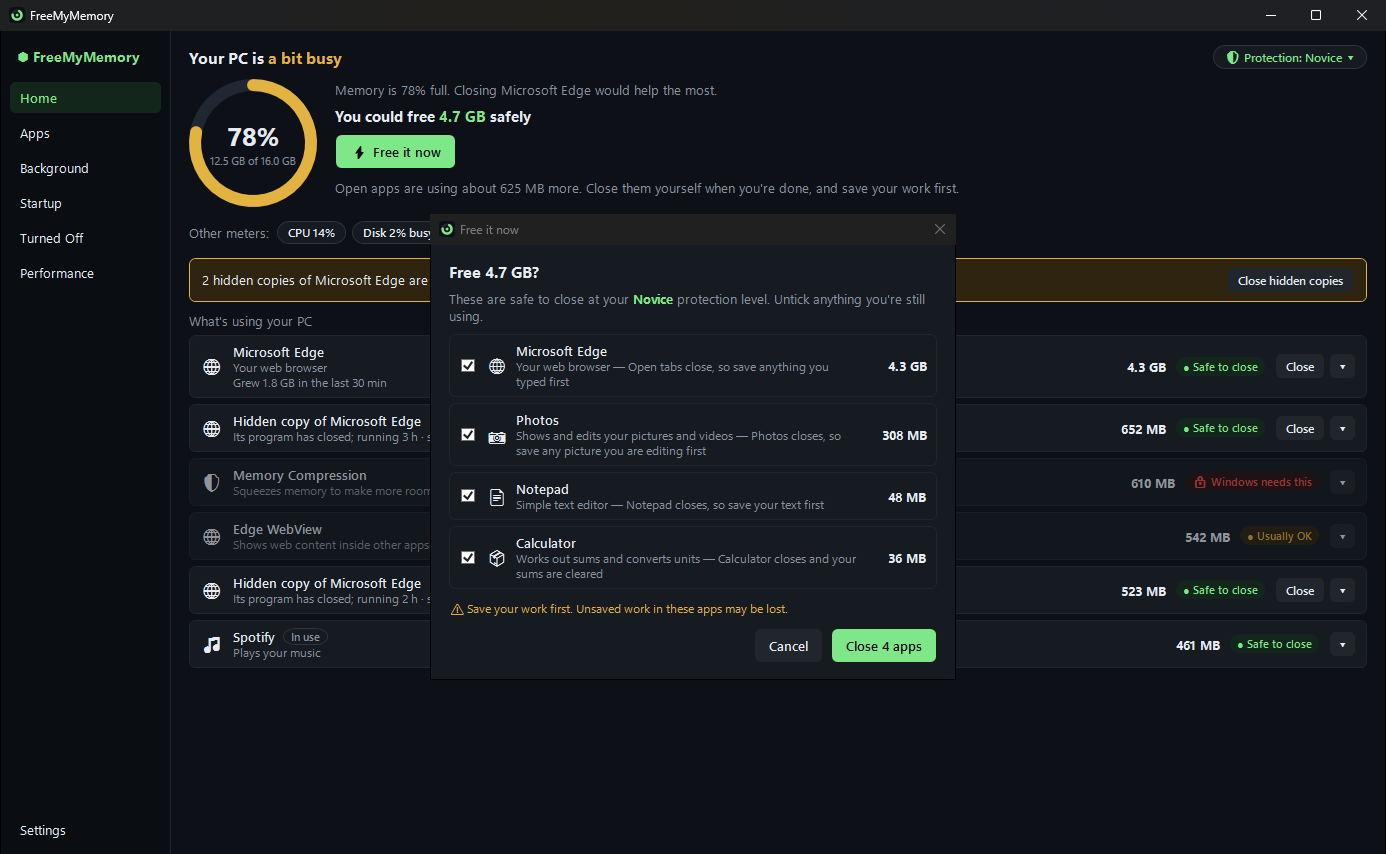
Free it now closes only apps that are safe to close and that you aren't using. It shows the list first, and nothing closes until you say so.
Free it now never closes an app you're using: one playing sound, using the microphone, busy with a task, or in front of you in the last 2 minutes. Home marks it In use.
Test tools and other programs can start hidden copies of a browser and leave them running. FreeMyMemory finds them, says how much memory they hold, and closes only leftover copies that nothing is using.
An app whose memory keeps climbing gets a quiet note: Grew 1.8 GB in the last 30 min. It's a note, not an action. It builds up only while the window is open, or while alerts are on in the notification area.
Optional alerts know how much memory your PC has: 7.9 GB of Edge is normal on a 32 GB PC and a lot on an 8 GB laptop. When the app has a tip, the alert gives it.
Turn off startup apps and background services you don't need. The Turned Off page lists everything FreeMyMemory turned off, each with Turn back on.
Pick Novice, Basic or Expert. Novice, the default, lets you close the apps you can see and turn off your own startup apps. Anything your level doesn't allow is greyed out, with the reason.
Before Expert turns off a Windows feature such as Wi-Fi, sound or Windows Update, FreeMyMemory asks Windows to make a System Restore point.
Keep it running in the notification area, and open it from any app with a shortcut such as Ctrl+Shift+M.
Dark, light, or the same as Windows.
How it works
FreeMyMemory.exe is one file with no installer. It runs from wherever you put it: your Desktop, a folder or a USB stick.
Home says how your PC is doing and what is using its memory, in plain words, with a safety badge on everything.
Press Free it now, check the list and confirm. Each app is asked to close politely, so it can ask you to save first.
Take a look
Home
The first line says how much you could free safely, with a Free it now button. The second says what your other open apps are using, so you can close them yourself when you're done. Below that: the processor, disk and graphics card, and what's using your PC the most.
Free it now
Free it now lists the apps that are safe to close at your protection level, each with what you'd lose, and reminds you to save your work. Untick anything you still want. Then it asks each app to close politely, one at a time, and shows how much was freed.
And more
Not svchost.exe or RuntimeBroker: what each one is, and whether it's safe to stop.
Task Manager's End task can hang on a frozen app. Force stop ends it straight away.
It starts without administrator rights. When something needs them, it offers Unlock full control (restart as administrator).
The window keeps responding while the numbers are gathered in the background.
No placebo RAM cleaning: it frees memory by closing what uses it, and shows what each thing costs.
Its settings sit next to the exe when that folder can be written to, so it works from a USB stick.
Your PC, your call
--restore-all. Closing an app asks it to close politely first, so it can ask you to save.Turned Off and Restore everything work in Safe Mode too. Or start Command Prompt as administrator, go to the folder that has FreeMyMemory.exe, and run start /wait FreeMyMemory.exe --restore-all. It prints one line for each item it put back.
No installer, no account, no ads.