Features

A tour of each page of FreeMyMemory.

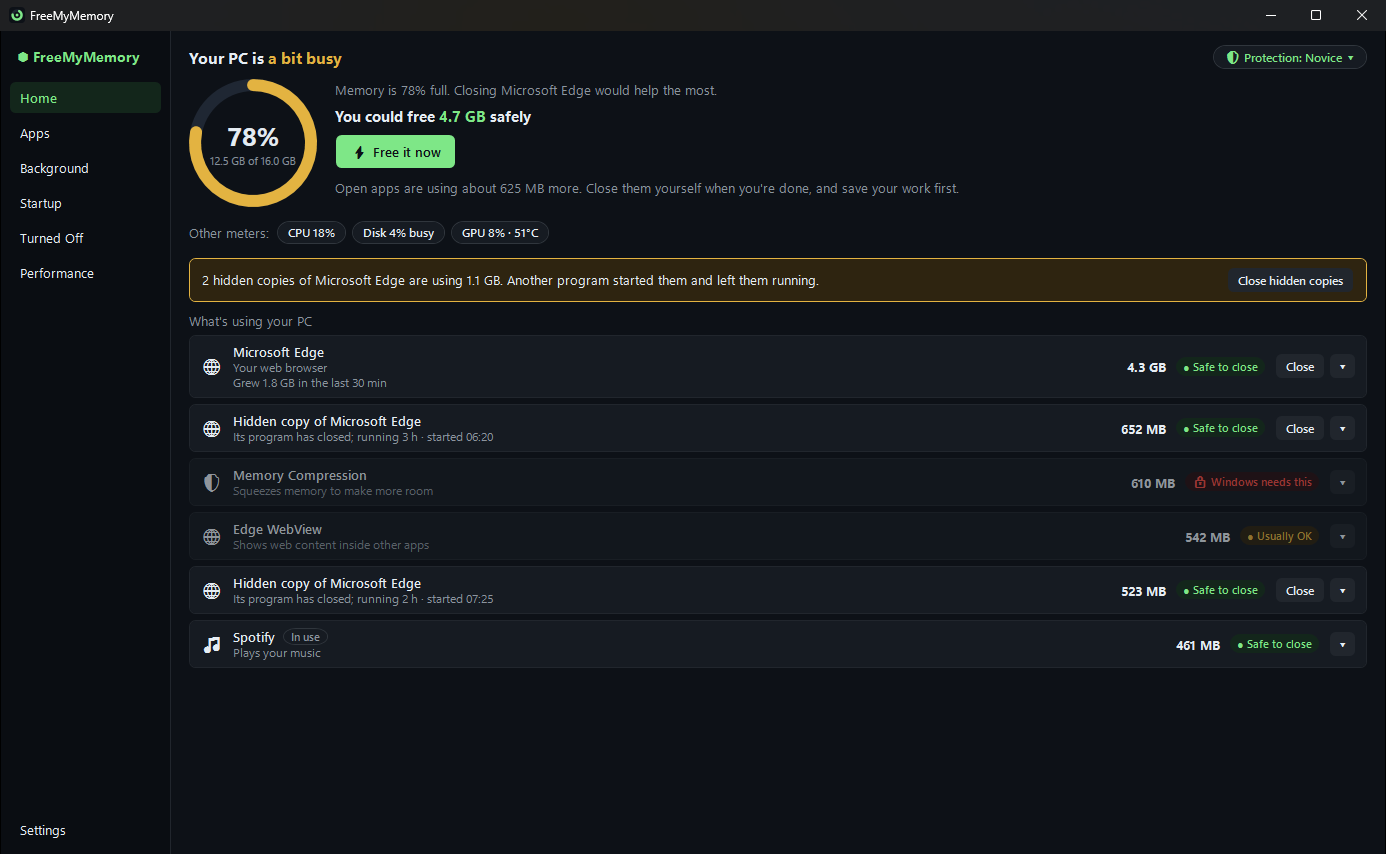
The Home page: how the PC is doing, how much can be freed safely, and what is using its memory (Example PC)
Example PC

Home

How your PC is doing, in two calm lines

The first line says how much you could free safely, with a Free it now button. The second says what your other open apps are using, so you can close them yourself when you're done. Below that: the processor, disk and graphics card, and what's using your PC the most.
  • Each row says what the app is, with a safety badge
  • An app you're using shows In use and can't be closed from Home
  • Leftover hidden browser copies get a note of their own, with Close hidden copies
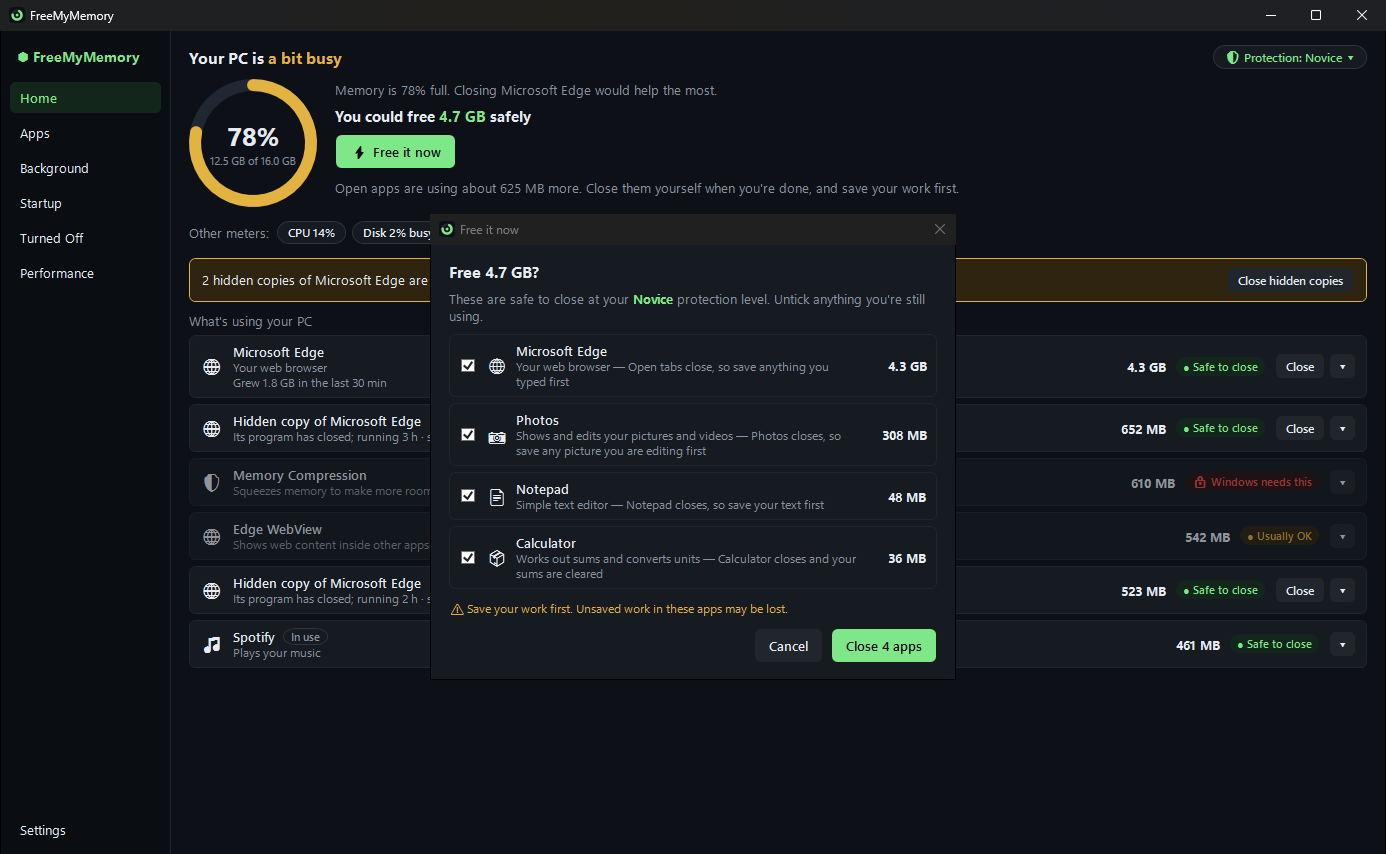
The Free it now list: the apps that are safe to close, each with what you lose, and a reminder to save first (Example PC)
Example PC

Free it now

A list first, and nothing closes until you say so

Free it now lists the apps that are safe to close at your protection level, each with what you'd lose, and reminds you to save your work. Untick anything you still want. Then it asks each app to close politely, one at a time, and shows how much was freed.
  • An app asking whether to save is left for you to answer
  • It never forces anything closed by itself: Force stop is there if you want it
  • An app that became busy meanwhile is left open: In use — left open
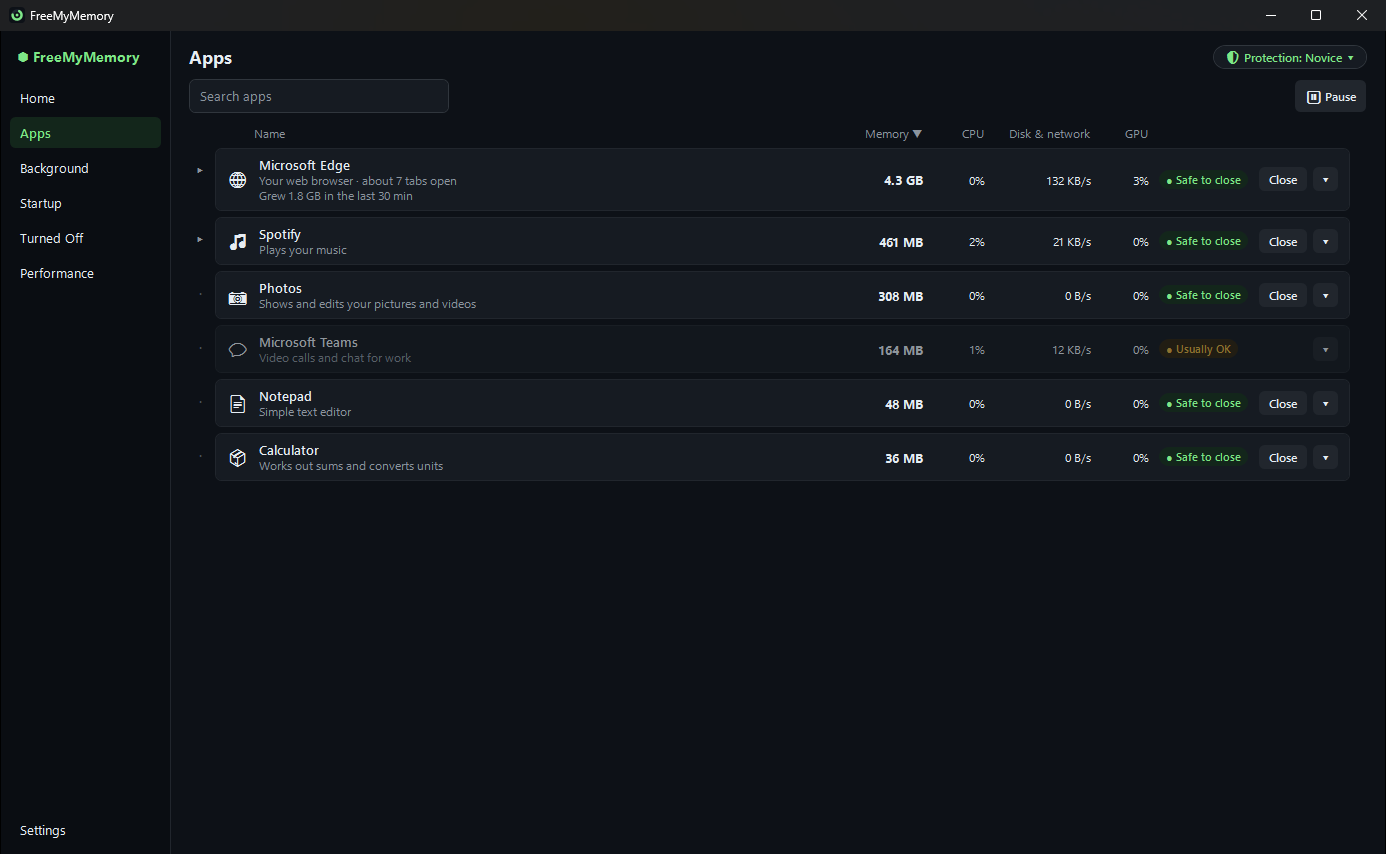
The Apps page: open apps grouped by app, each with its memory and a safety badge (Example PC)
Example PC

Apps

Every open app, grouped

All of a browser's processes are one row, with their total. Each app says what it is and whether it's safe to close. Search, sort, or open a group to see what's inside it.
  • Here you choose what to close, within your protection level
  • Close asks the app politely, so it can ask you to save
  • Force stop ends a frozen app straight away
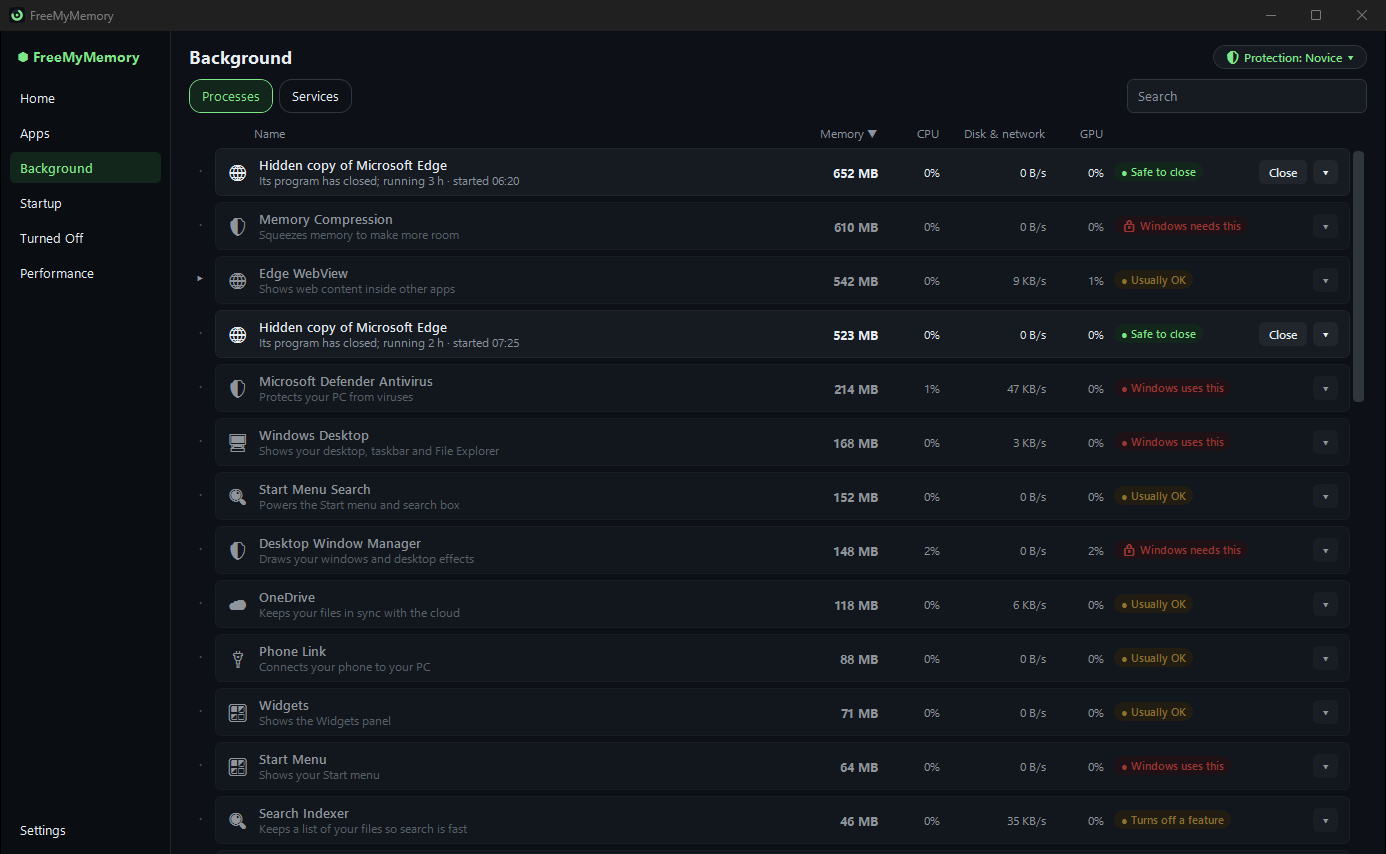
The Background page: programs running without a window, and Windows services (Example PC)
Example PC

Background

Background programs and Windows services

Two tabs: programs running without a window, and Windows services. Services say in plain words how they start: Starts automatically, Starts when needed or Off.
  • The same safety badges and plain descriptions
  • A program it doesn't know offers Search online and Check on VirusTotal
  • VirusTotal gets only the file's fingerprint, never the file
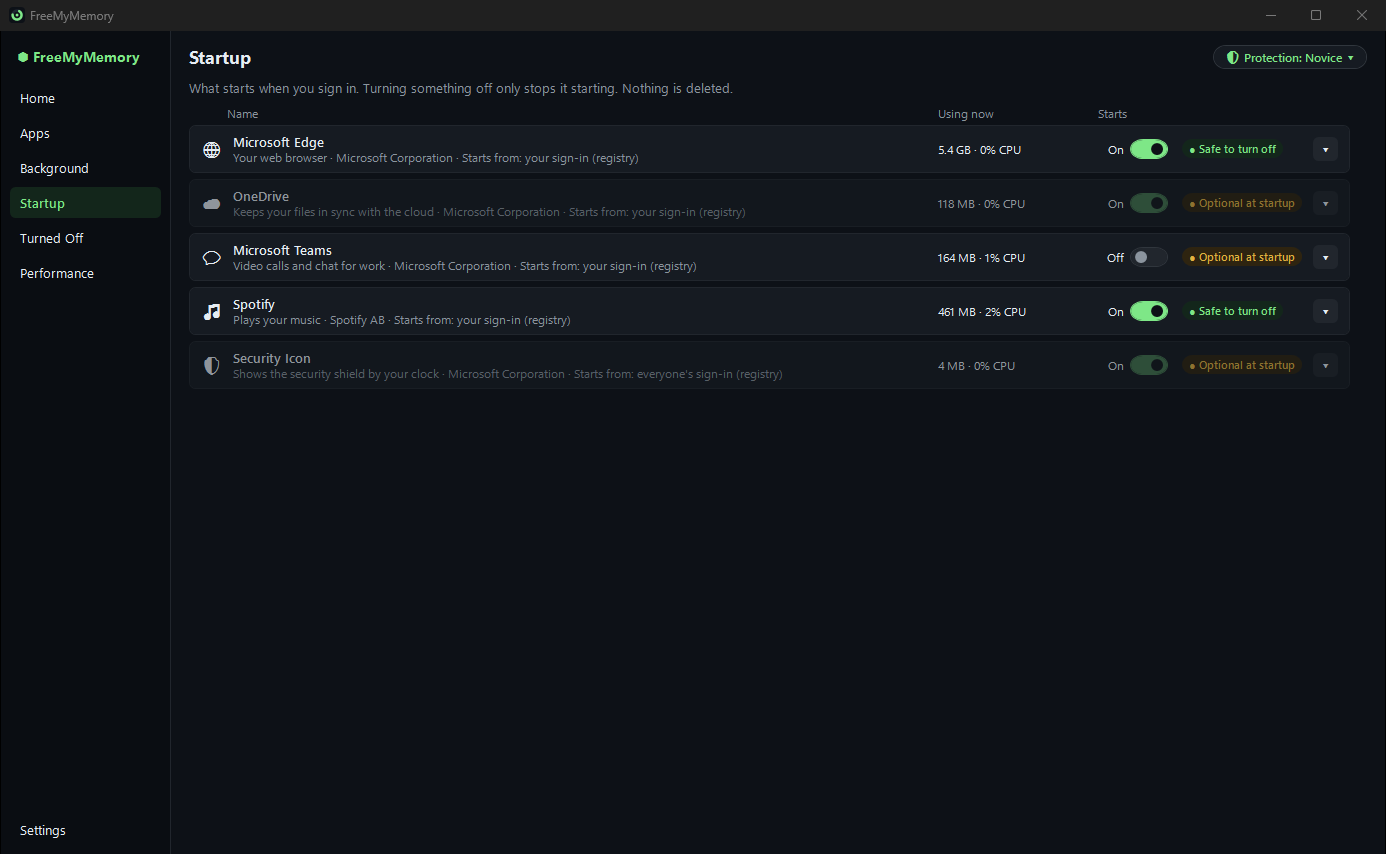
The Startup page: what starts when you sign in, with a switch for each (Example PC)
Example PC

Startup

What starts when you sign in

Every startup app, from every place Windows keeps them, with a switch for each. Each one shows how much memory and processor it is really using right now, instead of Not measured.
  • Your own startup apps can be turned off at Novice
  • Turned off the same way Task Manager does it
  • Ones installed for everyone on the PC need Basic and administrator rights
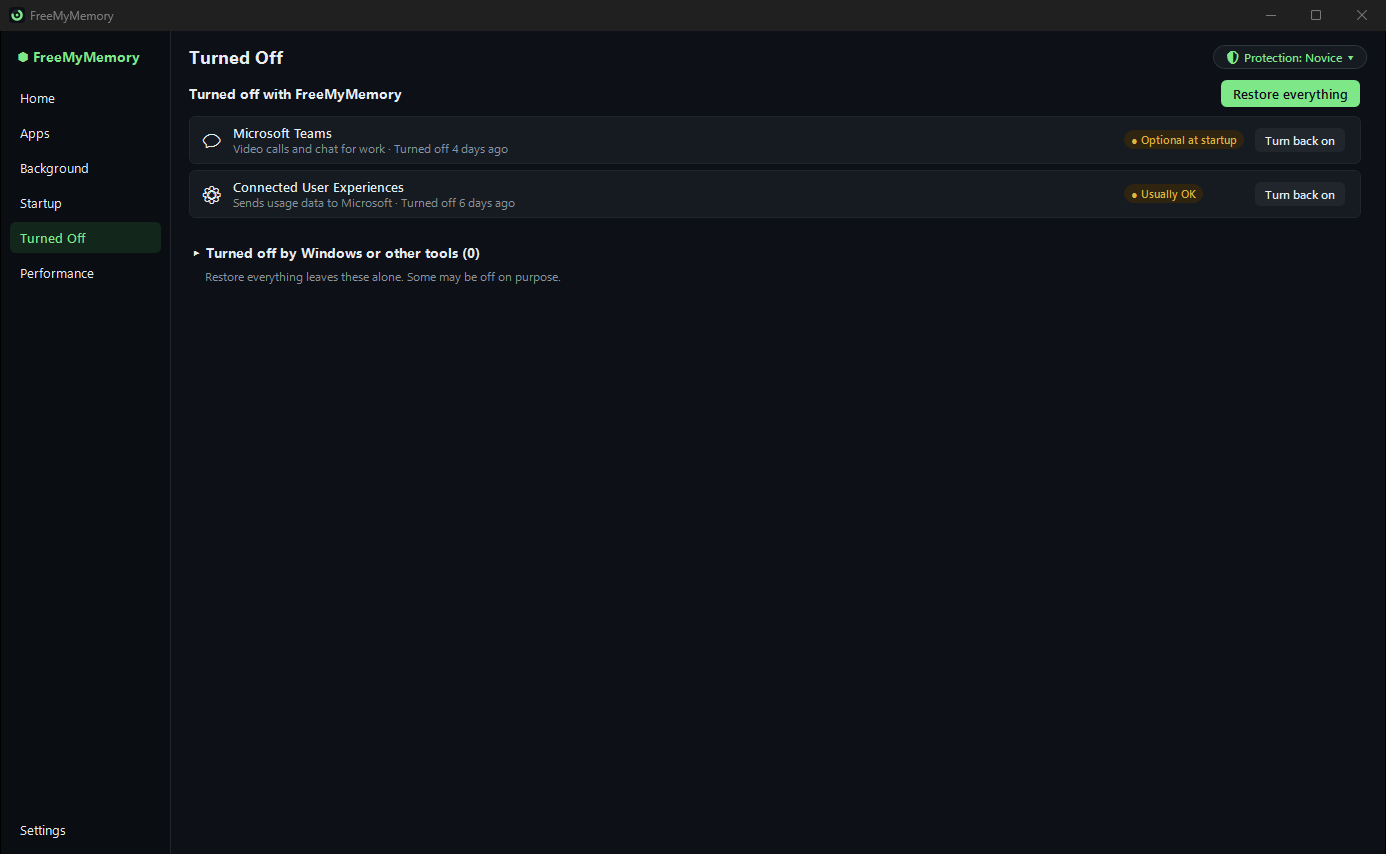
The Turned Off page: everything turned off, each with Turn back on, and Restore everything (Example PC)
Example PC

Turned Off

Everything it turned off, ready to turn back on

Each item FreeMyMemory turned off is listed with Turn back on. Restore everything puts them all back exactly as they were, for example Automatic (Delayed Start), not just on.

  • Nothing is deleted, only switched off
  • It works in Safe Mode too
  • Or from Command Prompt: start /wait FreeMyMemory.exe --restore-all
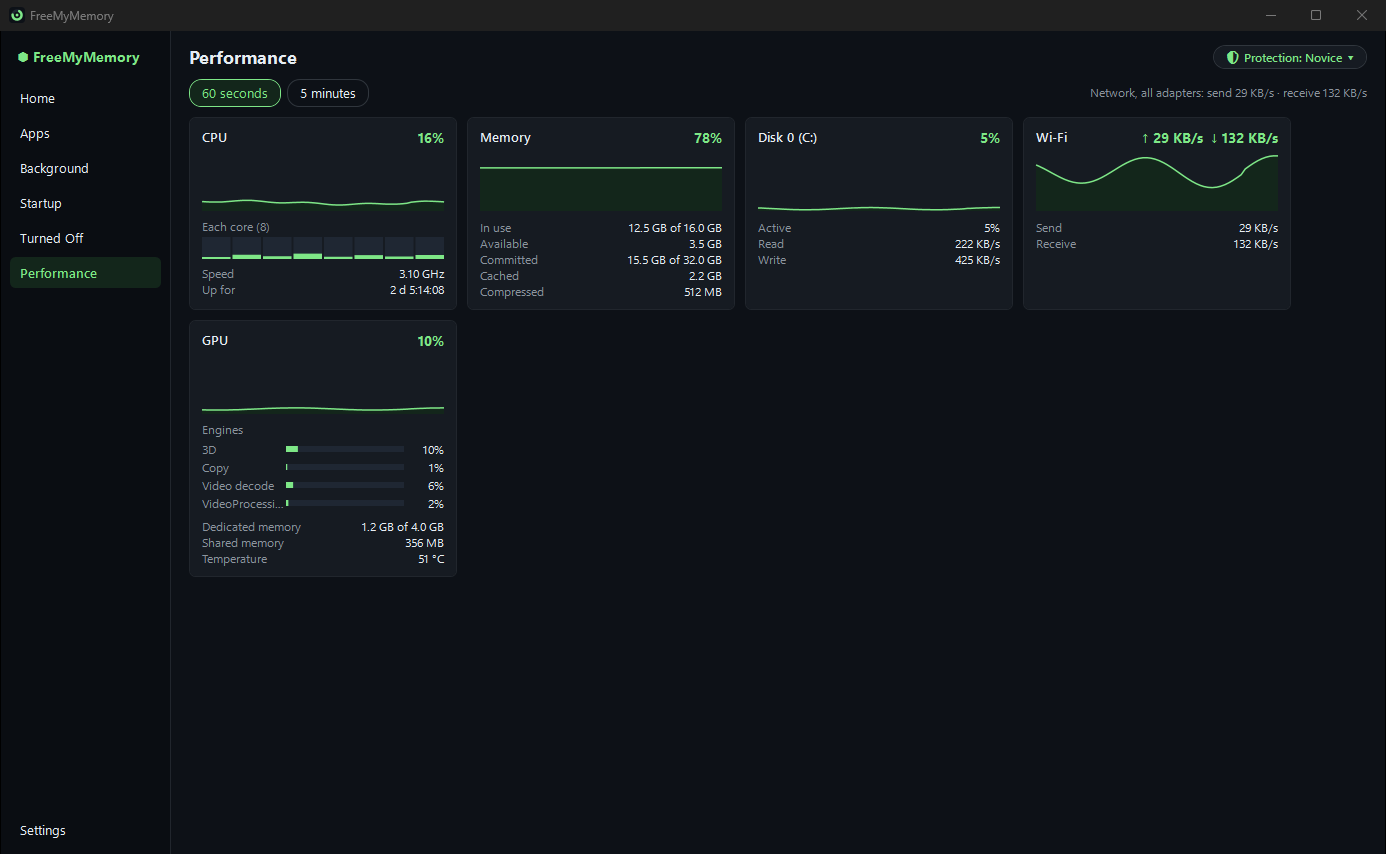
The Performance page: live graphs for the processor, memory, disks, network and graphics card (Example PC)
Example PC

Performance

Live graphs

The processor, memory, each disk, each network adapter and the graphics card, over the last 60 seconds or 5 minutes.
  • Memory in use, available, committed, cached and compressed
  • The graphics card's temperature, where its maker shares it
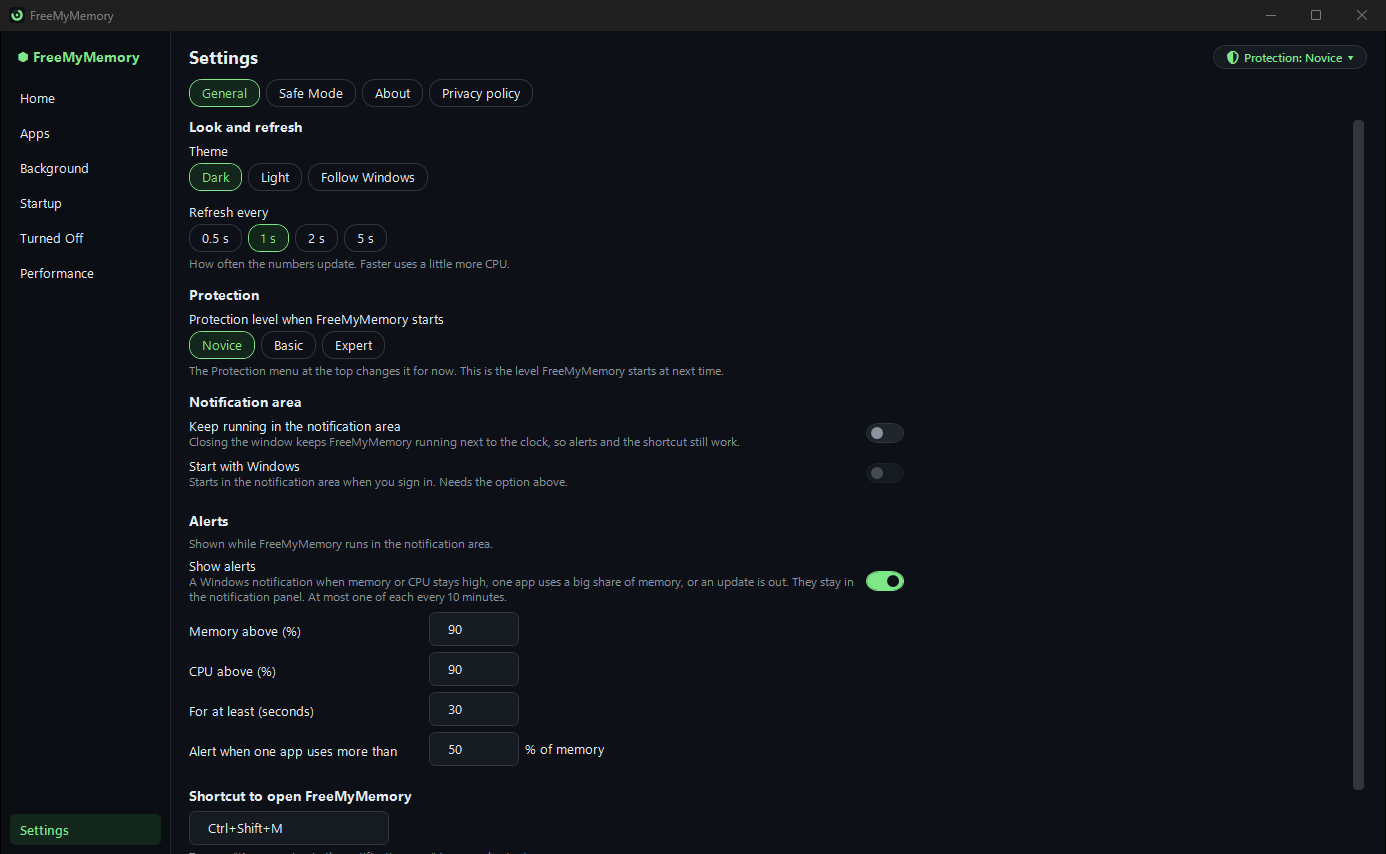
The Settings page: theme, refresh speed, protection level, notification area and alerts (Example PC)
Example PC

Settings

Your choices, in one place

Theme, how often the numbers refresh, the protection level it starts at, the notification area and alerts, the update check, Safe Mode, About and the privacy policy.
  • Restart in Safe Mode goes into Safe Mode once; the restart after that is normal
  • The update check can be turned off
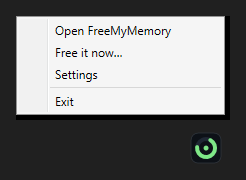
The icon next to the clock and its menu: Open, Free it now, Settings and Exit (Example PC)
Example PC

Next to the clock

Running quietly in the notification area

Turn on Keep running in the notification area and closing the window keeps FreeMyMemory running next to the clock, so alerts and the shortcut still work.

  • Start with Windows, straight into the notification area
  • A shortcut opens it from any app, such as Ctrl+Shift+M
  • Alerts when memory stays high, one app takes a big share, or hidden copies pile up

And there is more

The little things

Plain names

Not svchost.exe or RuntimeBroker: what each one is, and whether it's safe to stop.

Force stop that's instant

Task Manager's End task can hang on a frozen app. Force stop ends it straight away.

Admin only when needed

It starts without administrator rights. When something needs them, it offers Unlock full control (restart as administrator).

It never freezes

The window keeps responding while the numbers are gathered in the background.

Honest freeing

No placebo RAM cleaning: it frees memory by closing what uses it, and shows what each thing costs.

Portable

Its settings sit next to the exe when that folder can be written to, so it works from a USB stick.

Coming

What we're working on

None of these are ready, and we won't give them dates until they are.

The first public release

FreeMyMemory 1.0.0, as one file to download from this site.

Public source code

The code, in public on GitHub, under the MIT License.

Code signing

A signed exe, so Windows can name its publisher instead of warning about an unknown one.

A smaller download

A smaller file to download.

Lighter on memory

FreeMyMemory itself using less memory while it runs.

Free, and one file

No installer, no account, no ads.

Download coming soon